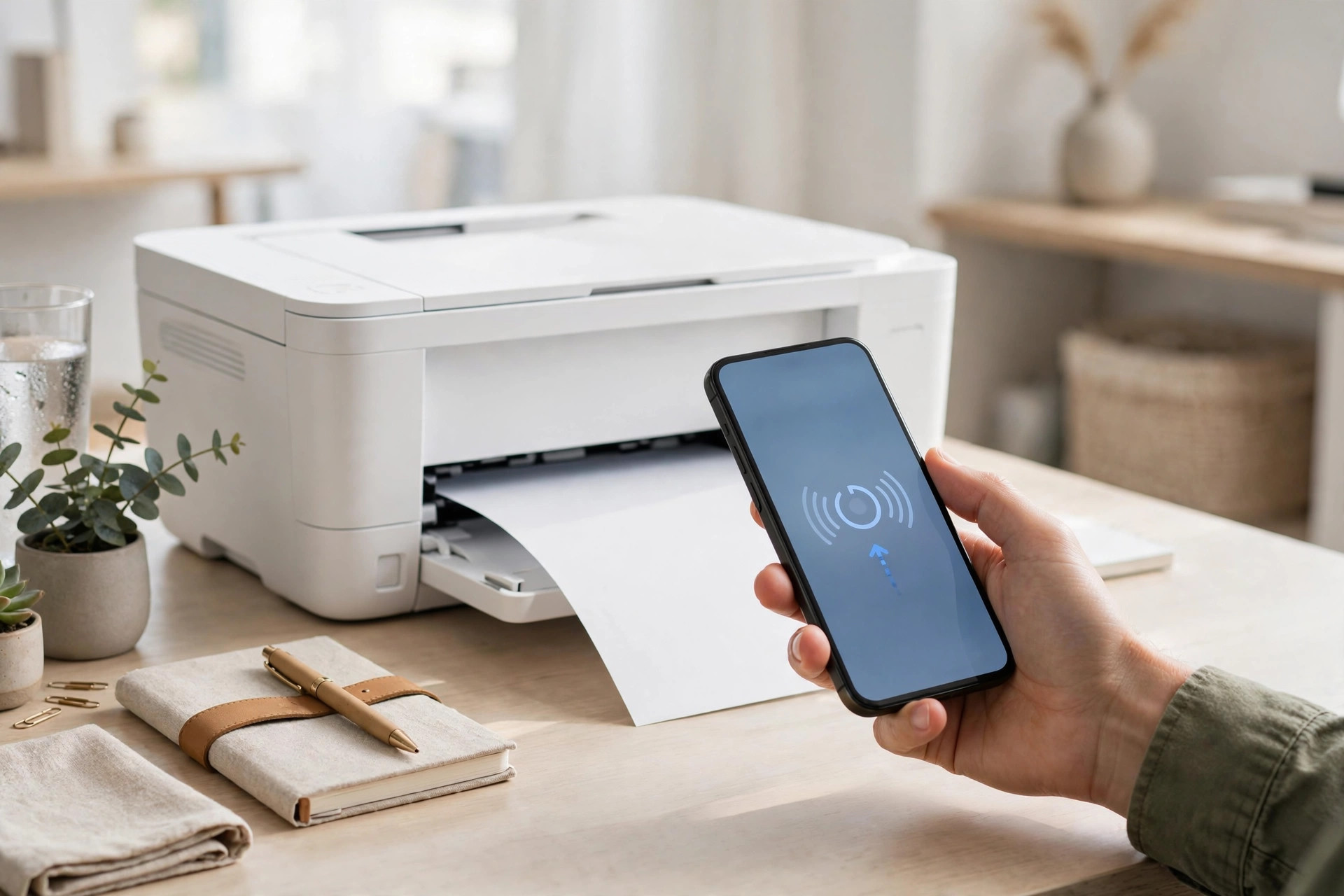
Printing from your phone is easier than you think. Whether you use an iPhone or an Android device, you can send documents, photos, and web pages straight to your printer over Wi-Fi in under a minute. This guide walks you through every method, from Apple’s built-in AirPrint to Android’s default printing service and printer manufacturer apps.
Key Takeaways
- iPhones print wirelessly through AirPrint with no extra app needed.
- Android phones use the built-in Default Print Service or the printer maker’s app.
- Your phone and printer must be on the same Wi-Fi network.
- You can print photos, documents, emails, and web pages from most apps.
- Most printing problems are fixed by restarting the printer and checking Wi-Fi.
1. Before You Start: What You Need
You only need three things to print from your phone: a Wi-Fi-enabled printer, a smartphone, and both devices connected to the same Wi-Fi network. That last point matters more than anything else. If your phone is on mobile data and your printer is on Wi-Fi, they cannot find each other.
Most printers sold in the last decade support wireless printing. If you are not sure, check for a Wi-Fi symbol on the printer or look at the model name online. Printers that support AirPrint (for iPhone) or Google Cloud Print alternatives (for Android) will list it as a feature.
2. How to Print From an iPhone (AirPrint)
Every iPhone has a built-in feature called AirPrint. It lets you print without installing anything, and it works from nearly every app. Apple keeps an official page with the full list of compatible printers if you want to confirm yours is supported.
Print a document or photo on iPhone
Open the file, photo, email, or web page you want to print. Tap the Share button (the square with an upward arrow), then scroll down and tap Print. Choose your printer from the list, set the number of copies, and adjust options like paper size or color if needed. Tap Print in the top-right corner, and you are done.
View or cancel a print job on iPhone
While a job is printing, open the App Switcher and you will see Print Center as an option. Tap it to view the print queue. To cancel a job, select it and tap Cancel Printing. If no jobs are running, Print Center will not appear.
3. How to Print From an Android Phone
Android phones do not use AirPrint, but they have their own built-in printing service that works just as well. The exact menu names vary slightly between Samsung, Google Pixel, and other brands, but the steps are nearly identical.
Print with the Default Print Service
Open the document, photo, email, or web page you want to print. Tap the three-dot menu (or the Share icon, depending on the app) and select Print. At the top of the print preview, tap the printer name and choose your printer – if it does not appear, tap All printers and wait for your network to be scanned. Adjust copies, paper size, and color, then tap the print button.
Enable printing if the option is missing
On some phones the print service is turned off by default. Go to Settings, search for Printing, and open Default Print Service. Make sure it is switched on. Your phone will then discover printers on your Wi-Fi network automatically.
4. Print Using Your Printer Maker’s App
When the built-in method does not work, the printer manufacturer’s app is your best backup. HP, Canon, Epson, and Brother all offer free apps (HP Smart, Canon PRINT, Epson iPrint, Brother iPrint&Scan) that connect your phone to the printer directly.
Install the app from the Play Store or App Store, open it, and let it find your printer on the network. These apps do more than print – they let you scan documents to your phone, check ink levels, and troubleshoot errors. They are especially useful if your printer is a few years old and does not play nicely with AirPrint or the default Android service.
5. Print Photos, Emails, and Web Pages
Printing different content types follows the same pattern, but here are a few app-specific tips. In your Photos app, open the image, tap Share, then Print – you can choose glossy paper settings if your printer supports them. In Gmail, open the email, tap the three-dot menu, and choose Print; the email will print with its formatting intact.
For web pages, open the page in your browser, tap Share (iPhone) or the three-dot menu (Android), and select Print. Using print preview is smart here so you can drop unnecessary pages before they waste ink. Most browsers also let you print the page as a PDF instead, which is handy for saving boarding passes and receipts.
6. Troubleshooting: When Your Phone Won’t Print
Printer not showing up? Run through this quick checklist and you will fix 90% of problems.
First, confirm both devices are on the same Wi-Fi network – a phone on the 5 GHz band and a printer on 2.4 GHz can sometimes miss each other, so try putting both on the same band. Next, restart your printer and your phone; this clears stale network connections. Make sure the printer has paper, ink, and no paper jams, since printers often refuse jobs silently when they are low on supplies. If your printer still does not appear, check for firmware updates in the manufacturer’s app or on the printer’s settings screen. As a last resort, forget the printer from your phone’s print settings and add it again fresh.
7. Frequently Asked Questions
Can I print from my phone without Wi-Fi?
Yes. Many printers support Wi-Fi Direct, which lets your phone connect straight to the printer without a router. Check your printer’s manual for Wi-Fi Direct instructions. You can also print via USB with an OTG adapter and a cable on Android, though this is rarely needed.
Is printing from a phone free?
Yes, printing over your own Wi-Fi network costs nothing beyond ink and paper. Be careful with third-party printing apps that charge subscription fees – the built-in AirPrint and Android print services are completely free.
Why does my iPhone say “No AirPrint Printers Found”?
This almost always means the phone and printer are on different networks, or the printer’s AirPrint feature is disabled. Put both devices on the same Wi-Fi band, restart the printer, and check the printer’s network settings to confirm AirPrint or wireless printing is turned on.
Can I print from my phone to someone else’s printer?
Only if your phone can reach that printer over a network. At offices or hotels, connect to their Wi-Fi and follow the same steps. Some public printers use email-to-print: you send your document to the printer’s email address and it prints automatically.
How do I print a text message conversation?
Take screenshots of the conversation, then print the screenshots from your Photos app. For a cleaner result, some backup apps can export message threads as a PDF, which you can then print directly.
Conclusion
Printing from your phone takes less than a minute once everything is set up. iPhone users get the smoothest experience with AirPrint, Android users are covered by the Default Print Service, and printer maker apps fill any gaps. Keep both devices on the same Wi-Fi network, and when something goes wrong, a quick restart solves it most of the time. Try printing a test page today – you will probably never go back to emailing files to your computer just to print them. 🖨️

I’m Ella Punster, a pun expert, and I create witty, fun, and clever puns ono Punvio to make your day brighter. Explore my unique wordplay and join me in celebrating the joy of humor