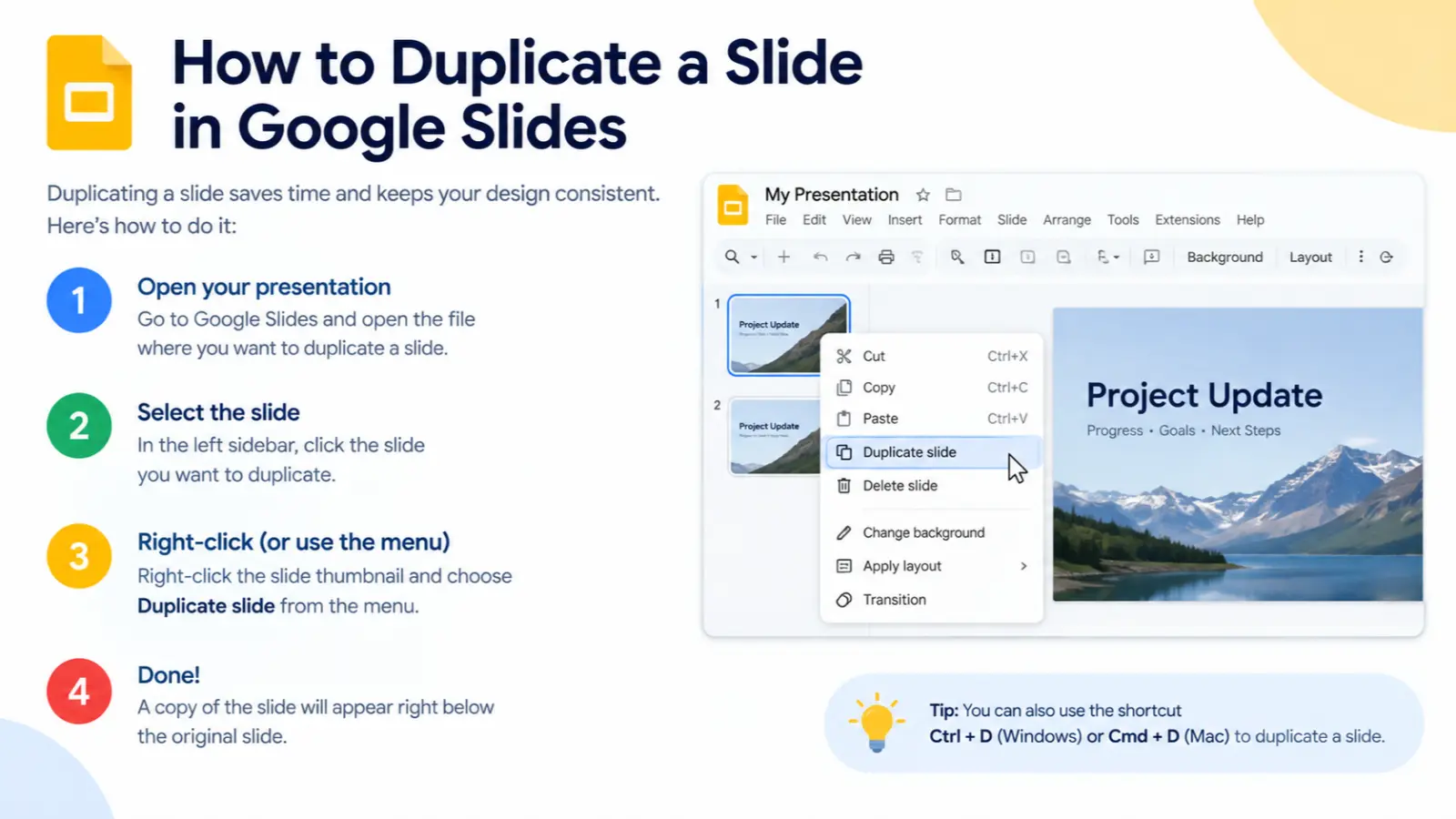
To duplicate a slide in Google Slides, select the slide from the left sidebar, right-click it, and choose Duplicate slide.
You can also select the slide and press Ctrl + D on Windows or ChromeOS, or Command + D on Mac. The duplicate is created as a new slide in the presentation.
Key Takeaways
- Right-click a slide thumbnail and choose Duplicate slide for the easiest method.
- Use Ctrl + D on Windows or ChromeOS.
- Use Command + D on Mac.
- You can select and duplicate multiple slides at once.
- On Android, touch and hold a slide, choose Copy, then Paste.
How to Duplicate a Slide in Google Slides
Duplicating a slide is useful when you want to reuse an existing design instead of creating a new slide from scratch. It lets you make another version of a slide while keeping its existing layout and content.
For example, suppose you have a presentation with a title slide, an image layout, and several content slides. If you want another slide with the same structure as an existing content slide, duplicating it is usually faster than creating a new slide and rebuilding the design.
Google Slides provides several ways to do this, including the right-click menu, keyboard shortcuts, and copy-and-paste methods.
Method 1: Duplicate a Slide Using Right-Click
The right-click method is probably the simplest option, especially if you are new to Google Slides.
Steps
- Open your presentation in Google Slides.
- Look at the slide thumbnails in the left sidebar.
- Click the slide you want to duplicate.
- Right-click the selected slide.
- Choose Duplicate slide.
- Google Slides will create a copy of the slide.
The duplicated slide appears in the presentation, allowing you to edit it independently from the original. Google officially lists this as one of the standard ways to duplicate a slide.
Why use this method?
This approach is helpful when you do not want to remember keyboard shortcuts. It also makes the action easy to find because the Duplicate slide option is displayed directly in the menu.
Tip: If you are working with an important presentation, duplicating a slide can be a quick way to preserve a design you may want to reuse later.
Method 2: Use the Google Slides Keyboard Shortcut
If you duplicate slides frequently, the keyboard shortcut is much faster.
Windows and ChromeOS
First, select the slide you want to duplicate in the left sidebar.
Then press:
Ctrl + D
Google’s current keyboard shortcut documentation lists Ctrl + D as the shortcut for duplicating a slide on PC and ChromeOS.
The copied slide is added to the presentation without requiring you to open the right-click menu.
Mac
On a Mac, select the slide and press:
Command + D
Google lists Command + D as the Mac shortcut for duplicating a slide.
This is particularly convenient if you are creating presentations with many repeated slide layouts.
Quick Shortcut Table
| Device | Duplicate Slide Shortcut |
|---|---|
| Windows | Ctrl + D |
| ChromeOS | Ctrl + D |
| Mac | Command + D |
Important: Make sure the slide itself is selected rather than an individual text box, image, or other object. Otherwise, you may duplicate the selected object instead of the entire slide.
How to Duplicate Multiple Slides
You do not have to duplicate slides one at a time. Google Slides allows you to select multiple slides and duplicate them.
On a computer
- Open your presentation.
- Go to the slide thumbnails on the left.
- Select the first slide you want to duplicate.
- Hold Shift and select additional slides when they are next to each other.
- Right-click the selected slides.
- Choose Duplicate slide.
Google’s documentation specifically notes that you can select multiple slides with the Shift key before choosing the duplicate option.
This can save considerable time when you want to reuse a group of slides.
For example, if slides 4 through 7 contain a complete section of your presentation that you want to repeat, you can select that group rather than duplicating each slide separately.
Key Takeaway: Select multiple slides first when you want to reproduce an entire section of a presentation quickly.
How to Duplicate a Slide on Android
The process is slightly different in the Google Slides Android app.
According to Google’s current instructions:
- Open the presentation in the Google Slides app.
- At the bottom of the screen, touch and hold the slide you want to duplicate.
- Select additional slides if you want to copy more than one.
- Tap Copy.
- Tap Paste.
- The duplicate appears after the original slide.
This approach uses the clipboard rather than the desktop-style Duplicate slide menu.
Android shortcut
Google also documents Ctrl + D as a duplicate shortcut when using a compatible keyboard with Android.
However, for most phone users, the touch-and-hold Copy → Paste process is the more practical option.
How to Copy a Slide to Another Google Slides Presentation
Sometimes you do not want to duplicate a slide within the same presentation. Instead, you may want to copy it into another presentation.
In that situation, you can use the normal copy-and-paste process.
Steps
- Open the presentation containing the slide.
- Select the slide thumbnail.
- Copy the slide.
- Open the destination Google Slides presentation.
- Select the location where you want the copied slide.
- Paste the slide.
This is different from simply duplicating a slide because you are transferring the slide to another presentation rather than creating another copy inside the same deck.
Google’s Slides documentation also supports copying and pasting slides through the filmstrip when working with presentations.
Tip: Copying a slide is useful when you have created a useful template or design in one presentation and want to reuse it in another.
Duplicate Slide vs. New Slide
These two options may sound similar, but they serve different purposes.
| Feature | Duplicate Slide | New Slide |
|---|---|---|
| Copies existing content | Yes | No |
| Reuses an existing design | Yes | Can use a layout |
| Copies text and images | Yes | No |
| Best for repeated layouts | Yes | Sometimes |
| Saves editing time | Usually | Less often |
A new slide is useful when you want to start with a fresh canvas or apply a different layout.
A duplicated slide is better when you already have a design that works and only need to change some of the content.
For example, if you have a product slide with a title, image, description, and pricing area, you can duplicate it and replace the product information rather than rebuilding the entire structure.
Common Problems When Duplicating Slides
The whole slide is not being duplicated
Make sure you select the slide thumbnail in the left sidebar. If you click an individual object inside the slide and use a duplication shortcut, you may duplicate only that object.
Ctrl + D is not working as expected
Check that the slide thumbnail is selected. Google also notes that some keyboard shortcuts can vary depending on language or keyboard configuration.
If the shortcut is inconvenient, use the right-click method and choose Duplicate slide.
I want a completely blank slide
Do not duplicate an existing slide if you want a clean canvas. Instead, create a new slide and choose the layout you need.
I need to duplicate several slides
Select multiple slides before using the duplicate option. Holding Shift is useful when selecting a consecutive group of slides.
Frequently Asked Questions
What is the shortcut to duplicate a slide in Google Slides?
On Windows and ChromeOS, select the slide and press Ctrl + D. On Mac, select the slide and press Command + D. These are Google’s listed shortcuts for duplicating slides.
Can I duplicate multiple slides in Google Slides?
Yes. Select multiple slides in the left sidebar, such as by holding Shift while selecting slides, and then use the duplicate option. This is useful for copying an entire section of a presentation.
How do I duplicate a slide without using a keyboard shortcut?
Select the slide thumbnail, right-click it, and choose Duplicate slide. This is the simplest method if you prefer using the mouse or trackpad.
Can I duplicate a slide on Google Slides mobile?
Yes. On Android, touch and hold the slide, tap Copy, and then tap Paste. The copied slide appears after the original.
What is the difference between copying and duplicating a slide?
Duplicating a slide creates another version of the slide in the same presentation. Copying and pasting can also be used when you want to move or reuse a slide in another presentation.
Why should I duplicate a slide instead of creating a new one?
Duplicating is faster when you want to reuse an existing design, layout, text structure, images, or formatting. You can then change only the information that needs to be different.
Conclusion
Knowing how to duplicate a slide in Google Slides can save time when you are building presentations with repeated designs or layouts.
The easiest desktop method is to select the slide, right-click it, and choose Duplicate slide.
If you prefer keyboard shortcuts, use Ctrl + D on Windows or ChromeOS and Command + D on Mac. You can also duplicate multiple slides by selecting them together.
On Android, touch and hold the slide, choose Copy, and then Paste.
Whether you are creating a school presentation, business deck, training material, or reusable template, duplicating slides lets you keep a consistent design while changing only the content you need.

I’m Ella Punster, a pun expert, and I create witty, fun, and clever puns ono Punvio to make your day brighter. Explore my unique wordplay and join me in celebrating the joy of humor